








Ever published a post you thought would rank well, but the traffic just stayed flat? Or maybe it started fine and then slowly dropped, and you couldn’t figure out why. You’re not imagining it, and you don’t have to guess what’s wrong. Google gives you a free tool that shows you exactly what’s going on.
That tool is Google Search Console, and this guide is going to walk you through how to use Google Search Console step by step. We will cover setup, dashboard navigation, reports, common errors, and a few practical tips that actually make a difference to your rankings. Whether you’re a blogger, a small business owner, or someone managing content for a brand, this Google Search Console guide is built for you.
Table of Contents
ToggleWhat Is Google Search Console (GSC)?
Google Search Console, or GSC as most people call it, is a free service by Google that lets you monitor how your website performs in search results. It was earlier known as Google Webmaster Tools, and the rebrand made sense because “console” fits better with what it actually does now.
In simple words, GSC tells you:
- How many people saw your website in a Google search
- How many actually clicked through
- Which keywords brought traffic to your pages
- Whether Google is having trouble crawling or indexing your pages
- If your site has any technical or mobile usability issues
It’s not an analytics tool like Google Analytics (we’ll get to that difference later), it’s more like a direct line of communication between your website and Google’s search engine. And that’s precisely why it matters so much for anyone serious about SEO.
How to Set Up Google Search Console?
Google Search Console setup is not complicated, but people do mess it up sometimes by choosing the wrong verification method. Here’s the process broken down.
Step 1: Sign In With a Google Account
You’ll need a Gmail or Google Workspace account. Head over to search.google.com/search-console and sign in.
Step 2: Choose Your Property Type
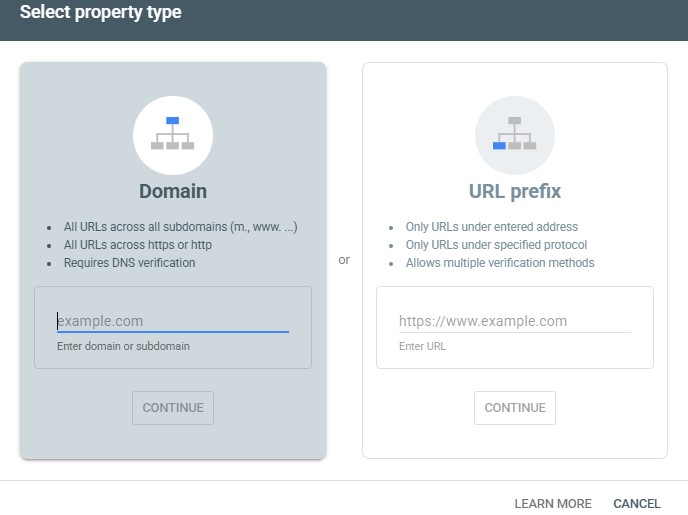
You get two options here:
- Domain property – covers everything under your domain (all subdomains, http and https versions). This needs DNS access.
- URL-prefix property – covers just the exact URL prefix you enter, like https://www.yoursite.com. Easier for beginners.
If you’re just starting out and don’t have DNS access handy, go with URL-prefix. It’s quicker.
Step 3: Verify Ownership
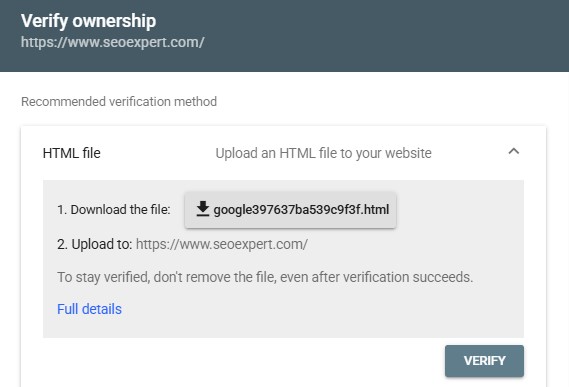
Google gives you a few ways to prove the site is yours:
- Upload an HTML file to your server
- Add an HTML meta tag to your homepage’s head section
- Use your Google Analytics account
- Use Google Tag Manager
- Add a DNS TXT record (for domain property)
Most WordPress users just install a plugin like Yoast or Rank Math and paste the verification code in there. Takes maybe two minutes once you know where to click.
Step 4: Submit Your Sitemap
Once verified, go to the Sitemaps section and submit your XML sitemap URL (usually something like yoursite.com/sitemap.xml). This helps Google discover your pages faster instead of waiting around for them to crawl naturally.
That’s it, really, your Google Search Console for beginners journey has officially started.
Why Is Google Search Console Important?
A lot of people ask this, and fair enough, why bother with another tool when you already have Google Analytics running?
Well, GSC shows you data that Analytics simply doesn’t have. It’s the only place where you can see:
- The exact search queries people used before landing on your site
- Which pages Google has indexed and which ones it skipped
- Technical errors that are silently hurting your rankings
- Your site’s mobile usability and Core Web Vitals scores
- Manual actions or security issues, if Google ever penalises your site
For anyone working as an SEO Consultant in India or managing multiple client websites, this tool becomes a daily habit rather than an occasional check-in. It’s also free, which is the best part. There’s no reason a website owner should skip setting it up.
Understanding the Google Search Console Dashboard
The Search Console dashboard can feel a bit overwhelming the first time you open it. Lots of tabs, graphs, numbers everywhere. But once you get the hang of the left sidebar, it becomes second nature.
Here’s what’s sitting in the sidebar generally:
- Overview – A quick snapshot of performance, indexing, and any experience issues
- Performance – Clicks, impressions, CTR, and average position data
- URL Inspection – Check the indexing status of any single page
- Pages – Which pages are indexed, which aren’t, and why
- Sitemaps – Submit and manage your XML sitemaps
- Removals – Temporarily hide URLs from search results
- Core Web Vitals – Page experience scores for mobile and desktop
- Mobile Usability – Errors affecting mobile users
- Links – Internal and external link data
- Security & Manual Actions – Penalties or hacked content warnings
Once you know where each report lives, using the dashboard becomes way less intimidating. Give it a week of poking around, and you’ll start navigating it without even thinking.
Some agencies working with an AI seo expert in India blend GSC data with AI-based content audits these days, which speeds things up quite a bit when you’re managing several websites at once.
How to Use Google Search Console Effectively?
This is really the heart of the matter. Knowing where the reports are is one thing; actually using them to improve your site is another. Below is a practical breakdown of what to check and how often.
Check Search Performance
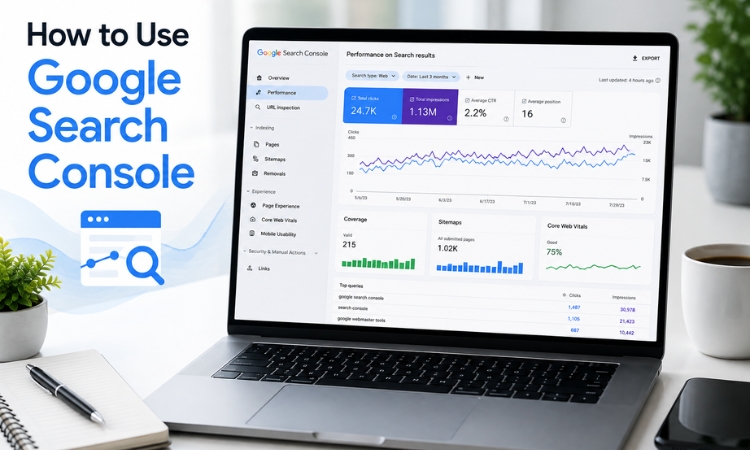
Go to the Performance report; this is arguably the most-used tab in the whole tool. It shows four core metrics:
- Total Clicks – how many people clicked on your site from a search
- Total Impressions – how many times your site showed up in results
- Average CTR – the percentage of impressions that turned into clicks
- Average Position – where your pages typically rank
Look at trends over 3 months, 6 months, whatever window makes sense for you. A sudden drop in clicks usually means something changed, an algorithm update, a technical error, or maybe a competitor outranked you.
Many teams are now also exploring Top AI SEO Tools alongside GSC to speed up analysis, though nothing replaces looking at the raw data yourself first.
Find Your Top Keywords
Under the Performance report, click the “Queries” tab. This shows every search term that brought impressions or clicks to your website.
A few things worth doing here:
- Sort by impressions to find keywords you’re ranking for but not getting clicks on (maybe your title tag needs work).
- Sort by position to spot “striking distance” keywords, ones ranking between positions 5 and 15; these are usually easiest to push higher with small content tweaks.
- Look for branded vs non-branded search terms separately, since they tell different stories.
This part alone can shape your entire content calendar if you pay attention to it regularly.
Monitor Top Pages
Switch the Performance report view to “Pages” instead of “Queries.” This tells you which URLs are pulling the most weight on your site.
If one blog post is getting disproportionate traffic compared to others, that’s worth studying. What made it work? Maybe it’s the topic, maybe the format, maybe it just got lucky with a featured snippet. Either way, your top pages usually hold clues for what to replicate elsewhere.
If lead generation is the end goal, learn how to generate leads from SEO before you understand the GSC. You’ll be able to understand which queries and pages are actually converting much better.
Inspect URLs
The URL Inspection tool sits right at the top of GSC. Just paste in any URL from your verified property and hit enter.
It’ll tell you:
- Whether the page is indexed
- The last crawl date
- Any indexing issues or coverage problems
- Mobile usability status for that specific page
If a page isn’t indexed and you believe it should be, you can click “Request Indexing” right from this screen. Google doesn’t guarantee it’ll index instantly, but it does push the page into a priority queue.
Submit an XML Sitemap
We touched on this in the setup section, but it’s worth repeating because sitemaps often get forgotten after the initial submission. Whenever you add new categories, restructure your site, or launch a fresh set of pages, go back to Sitemaps and make sure the current sitemap reflects those changes.
You can also compare submitted vs indexed page counts here; a big gap between the two usually signals a problem worth investigating.
Fix Indexing Errors
Head to the Pages report and look under “Why pages aren’t indexed.” Google groups errors into categories, and each one needs a slightly different fix (we’ll go deeper into this in the errors section below).
The general rule is: don’t panic over every single “not indexed” page. Some of them are meant to stay out of the index, like thank-you pages, admin pages, or duplicate filter URLs. Focus on the pages that actually matter for your business.
Monitor Mobile Usability
With most search traffic now coming from phones, this report matters a lot more than people give it credit for. Common issues flagged here include text too small to read, clickable elements placed too close together, or content wider than the screen.
Fixing these usually falls on your developer or theme settings, but knowing about them early saves you from losing mobile visitors silently.
Check Core Web Vitals
This report measures actual user experience through three metrics:
- Largest Contentful Paint (LCP) – how fast the main content loads
- Interaction to Next Paint (INP) – how responsive the page feels when someone interacts with it
- Cumulative Layout Shift (CLS) – how much the page jumps around visually while loading
Pages get scored Good, Needs Improvement, or Poor. Google has said page experience plays a role in rankings, so this isn’t something to ignore, especially on ecommerce or news sites where speed really counts.
Review Internal and External Links
The Links report shows two things: your top linked pages and the domains linking to you externally. This gives a rough sense of your backlink profile without needing a paid tool.
It’s also useful for spotting internal linking gaps. If an important page has almost no internal links pointing to it, that’s usually a missed opportunity; Google (and your users) may be struggling to find it naturally.
How to Read and Understand Google Search Console Reports
Here’s a quick table summarising what each report actually does, useful if you just need a fast reference.
Report | Purpose |
Performance | Track SEO traffic, clicks, impressions, and rankings |
URL Inspection | Check page indexing status for a specific URL |
Pages | View indexed pages and reasons for non-indexed ones |
Sitemaps | Submit and manage your XML sitemap |
Links | Analyse internal linking and backlinks |
Core Web Vitals | Measure page experience across mobile and desktop |
Bookmark this table, as it will save a lot of back and forth when you’re new to the platform.
Google Search Console Errors and How to Fix Them
Beginner marketers and SEO executives tend to freeze up the moment errors start showing in GSC. Let’s go through the ones you’ll run into most.
- Page Not Indexed
Error: This one’s basically a catch-all. Google looked at the page and decided, for whatever reason, not to add it to the index. Could be a leftover no-index tag, thin or low-value content, or maybe the page just hasn’t been around long enough yet.
Solution: Don’t panic and assume the worst. Open the Pages report first and see what specific reason Google gives, then act on that.
- Soft 404
Error: A soft 404 shows up when a page looks like a “not found” page content-wise, but the server still returns a 200 status, telling Google everything’s fine.
Solution: Two ways to fix it. Either send a real 404 for pages that genuinely don’t exist anymore, or put actual content on the page if it’s meant to stay live.
- Redirect Error
Error: Redirect chains are usually the culprit here — page A sending to B, which then sends to C, and so on. Loops cause the same problem.
Solution: Point every redirect straight to its final destination, skip the extra hops entirely.
- Server Error (5xx)
Error: Googlebot tried to reach your page, and your server just didn’t answer. Sometimes it’s a hosting problem, sometimes the server’s overloaded, sometimes it’s a one-off outage.
Solution: If this error keeps showing up again and again, that’s your cue to talk to your hosting provider.
- Duplicate Without User-Selected Canonical
Error: Google found several pages that look almost identical and had to pick one itself, since no canonical tag told it which version mattered.
Solution: Add a rel=”canonical” tag pointing to whichever page you actually want ranked. Once that’s in place, the crawler stops guessing.
- Crawled – Currently Not Indexed
Error: Google did crawl the page, it just hasn’t indexed it, and that’s often down to weak content quality or crawl budget getting prioritized elsewhere.
Solution: Over time, deepening the content, making it more unique, and strengthening internal links tends to nudge this one in the right direction.
Google Search Console Tips for Better SEO
Here are a few practical habits that make a real difference:
- Check Performance weekly instead of daily. Daily fluctuations are mostly noise anyway, not worth obsessing over.
- Turn on email alerts. That way, GSC pings you the moment something major breaks, instead of you finding out three weeks later.
- Try the “Compare” feature inside Performance. Lining up the current period against the previous one side by side tells you a lot fast.
- Export your data on a regular basis. GSC only keeps historical records for so long, and you don’t want to lose that.
- Pair GSC data with an actual SEO strategy. Better content structure, internal linking, and technical fixes work far better together than any one of them alone.
- And if the numbers start feeling murky or something seems technically off, bringing in an SEO Expert in India or a Digital marketing expert who works with GSC regularly can save a lot of guesswork.
- Track the right KPIs for Digital Marketing, like indexing health and page experience scores.
Conclusion
Google Search Console isn’t the flashiest tool out there, but it’s probably the most realistic and accurate one. It tells you exactly how Google sees your site, warts and all. Once you get comfortable navigating the dashboard, checking performance, fixing indexing errors, and keeping an eye on Core Web Vitals, it becomes second nature.
This guide covered the basics of how to use Google Search Console, but the real learning happens when you actually open the tool and start clicking around your own data. Set aside twenty minutes this week, log in, and see what it’s telling you about your site. Chances are, there’s something worth fixing already sitting there.
Frequently Asked Questions
1. How often should I check Google Search Console?
Weekly works fine for most sites. Larger or fast-moving websites benefit from checking two or three times a week, particularly the Performance and Pages reports.
2. Can Google Search Console improve SEO rankings?
Not on its own, no. GSC won’t touch your rankings directly. What it gives you is the data, the errors, the gaps, and fixing those is what eventually moves rankings. Treat it as a diagnostic tool, not something that boosts you by itself.
3. What is the difference between Google Search Console and Google Analytics?
GSC lives entirely in the world of Google Search: impressions, clicks, and indexing status. Analytics picks up once someone’s already on your site, tracking things like time on page, bounce rate, conversions. Neither replaces the other; they just cover different parts of the picture.
4. How long does it take for data to appear in Google Search Console?
Give it about 2 to 3 days after verification for performance data to start populating properly. Full historical trends need more time to settle, so try not to judge your site based on the first few days of numbers.
5. How do I request indexing for a page?
Drop the URL into the URL Inspection tool near the top of GSC, let it check the page’s current status, then hit “Request Indexing” if it hasn’t been indexed yet. No guarantee it happens instantly, but it usually speeds things up compared to just waiting on Google’s natural crawl schedule.